How to Turn Emails Into Calendar Events
A client emails: “Great, let’s lock in Thursday at 3pm CET, I’ll send the Zoom link in a sec.” Two replies later, the link arrives. You keep reading. You answer three more messages. By the time the morning is over, that meeting is nowhere on your calendar.
Thursday at 3:05pm, the client pings: “Are you joining?” You are not. You are searching your inbox for “Zoom”.
This happens to almost everyone who schedules through email. Not because people are careless, but because the handoff between Gmail and Google Calendar is manual, and manual work silently fails under pressure. Learning how to turn emails into calendar events automatically removes that failure point entirely.
The Real Cost of Manual Calendar Entry
The minute or two it takes to copy a date from an email into Google Calendar feels trivial in isolation. Add it up across a working week and the number stops being trivial.
According to McKinsey’s landmark study on knowledge worker productivity, the average professional spends about 28% of the workweek, roughly 13 hours, reading and answering email. A meaningful slice of that email contains scheduling: confirmations, reschedules, location updates, link drops.
Every one of those messages is a potential calendar event that needs manual transcription. If you handle ten scheduling emails a day and spend even 90 seconds each on copying the details over, that is 15 minutes a day. Seventy-five minutes a week. Fifty hours a year.
The hidden cost is worse than the time. Researcher Gloria Mark’s work at UC Irvine found that once you break focus to switch tasks, it takes an average of 23 minutes to fully return to the original work. A 90-second context switch into Calendar is not a 90-second interruption. It is a 25-minute productivity hole.
Then there are the meetings that never make it to the calendar at all. Those are the ones that produce the most painful moments: the missed client call, the sync you forgot, the “weren’t we meant to talk today?” Slack message.
Why Manual Entry and Classic Parsers Fail
The obvious response to this problem is: be more disciplined. Add every event to the calendar the moment it is confirmed.
In practice, this does not scale. Three things break the discipline:
- Timing: Confirmations arrive while you are writing a different email, on a call, or on your phone at 11pm. “I will do it in a minute” almost always means “I will not do it.”
- Accuracy: Even when you do create the event, quickly typed entries have wrong times, missing timezones, no meeting link, and empty description fields. You end up opening the original email anyway.
- Volume: For anyone fielding more than a handful of scheduling emails a day, the admin alone becomes a part-time job.
Gmail does ship a built-in event detector. It works well on automated confirmations from booking platforms. It works poorly on the informal threads where most scheduling actually happens. “Let’s do Thursday afternoon” or “next Tuesday at 4 works” tends to slip past it entirely, because pattern-matching rules miss natural language.
Other third-party email parsers follow the same model. They look for date-shaped strings in specific positions. They break the moment a thread gets messy, a reschedule happens, or the sender writes in a second language.
The Shift: Let AI Read the Email Like You Would
The difference that makes automated email-to-calendar conversion finally usable is that modern AI models do not pattern-match. They understand.
When a model like Gemini reads a thread, it follows the conversation the way a human assistant would. It sees that the 2pm proposed in the first email was replaced by 3pm in the third. It notices the Zoom link that was sent in a follow-up. It catches that the client is in CET and adjusts. It handles “dimarts a les 16h” in Catalan as naturally as “Tuesday at 4pm” in English.
That capability is what makes it realistic to turn emails into calendar events as a default workflow rather than an occasional win. A Gmail add-on can sit quietly in your sidebar, read the thread you are currently looking at, and hand you a ready-to-create event in seconds.
This is the model that Mail2Cal is built on.
How to Turn Emails Into Calendar Events With Mail2Cal
Mail2Cal is a Gmail add-on. You install it from the Google Workspace Marketplace, and it appears as a sidebar panel inside your existing Gmail interface. There is no separate app to open, no dashboard to learn, and no webhook to configure.
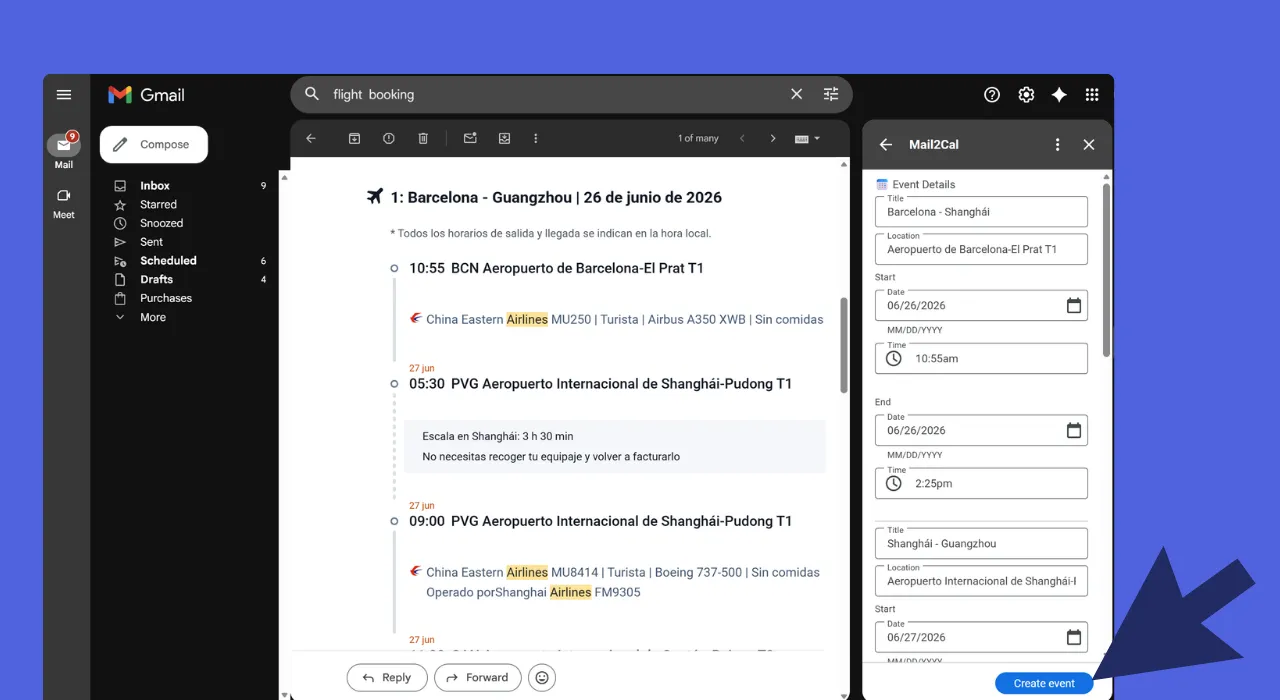
A concrete walkthrough. You receive this email from a prospect:
Hi Jordi, thanks for the call earlier. Let’s reconnect next Wednesday at 10:30 Barcelona time to review the proposal. I will send a Meet link in a separate message. Offices are at Passeig de Gràcia 92, 3rd floor, if you prefer in person.
You click the Mail2Cal icon in the Gmail sidebar. Within a couple of seconds, you see:
- Title: “Proposal review with [prospect name]”
- Date and time: Wednesday, [next week], 10:30 - 11:30 CET (duration inferred from context)
- Location: Passeig de Gràcia 92, 3rd floor
- Video call: (pulled from the follow-up message in the thread if present)
- Description: A one-line summary of what the meeting is about
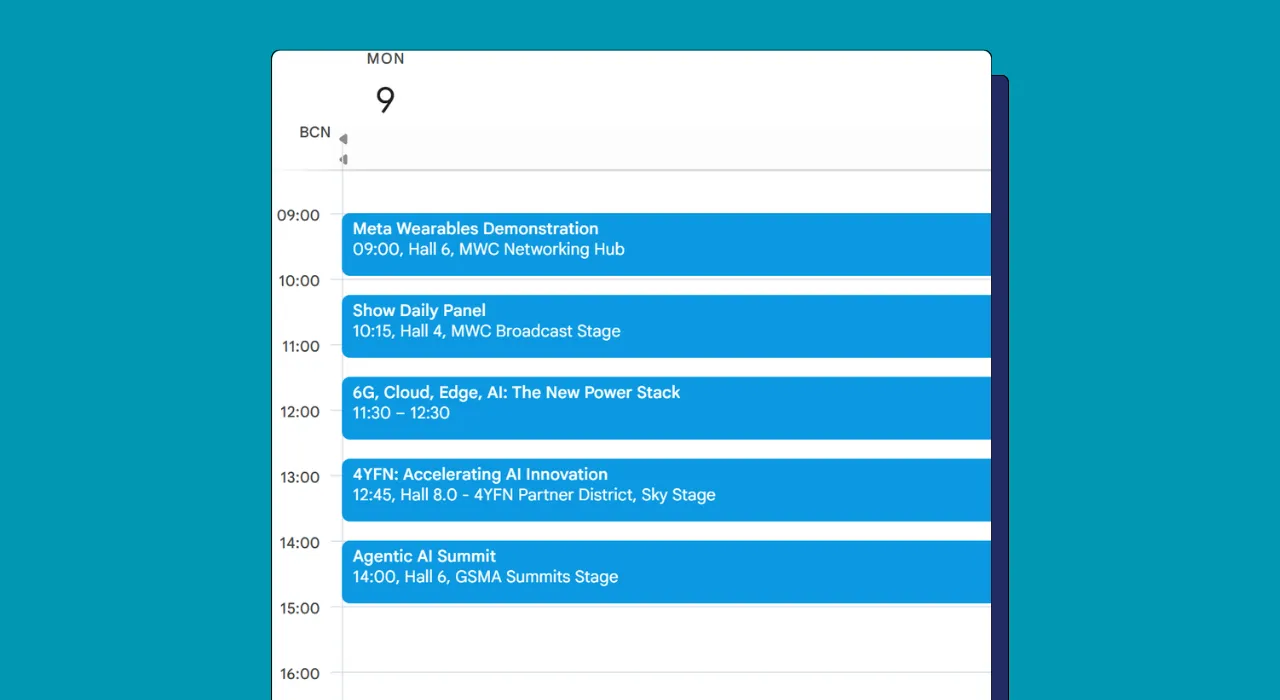
Every field is editable. You adjust anything that needs tweaking, click create, and the event lands in your Google Calendar. Total elapsed time: about 10 seconds. Context switches: zero.
Compared with opening a new tab, navigating to Calendar, picking a day, setting a time, pasting a link, adding a location, and flipping back to double-check the timezone, the delta is not a small improvement. It is a different kind of task.
Who Gets the Biggest Payoff
The people who benefit most from automatically turning emails into calendar events are the ones who already feel the pain daily:
Freelancers and consultants. Your schedule lives across multiple clients, and most confirmations arrive as short replies inside long threads. Missing any of them has a direct revenue cost.
Sales reps and account managers. Every discovery call, demo, or follow-up is agreed over email. The admin tax of creating each event manually adds up faster than almost any other sales activity, and forgotten events are visible to the customer.
Executive assistants and chiefs of staff. Managing someone else’s calendar means capturing every scheduling commitment made in threads the principal is cc’d on, often without the original context. Reading the email and producing a clean calendar event is exactly the task AI handles well.
Small business owners. You are balancing supplier calls, team syncs, customer meetings, and family logistics, often on mobile. Getting the event into the calendar has to be a two-tap action, not a multi-step workflow.
Recruiters and hiring managers. Interview schedules change constantly, and the right time usually lives five replies deep.
If your inbox regularly contains confirmed meetings that never make it onto your calendar, the fix is not more willpower. It is removing the manual step.
Practical Setup and What It Handles Best
Installing takes about five minutes. Visit the Mail2Cal listing on the Google Workspace Marketplace, click install, grant the Gmail and Calendar permissions, and the sidebar icon appears the next time you refresh Gmail.
What Mail2Cal Handles Without Fuss
- Natural language times like “Thursday morning”, “first thing Monday”, “end of next week”. Ambiguity is flagged for your review rather than guessed at.
- Multi-language threads. English, Spanish, Catalan, French, German, Portuguese, Italian, and others work without any configuration.
- Forwarded invitations. When someone forwards you a meeting invite, Mail2Cal reads the nested original content rather than the wrapper.
- Embedded video call links. Google Meet, Zoom, Microsoft Teams, Webex, Whereby, Around, and less common platforms are detected and placed in the correct calendar field.
- Multi-message threads with reschedules. If Tuesday at 2pm got bumped to Wednesday at 3pm three replies later, Mail2Cal uses the confirmed time, not the first date mentioned.
- Timezone context. CET, ET, PT, and “my local time” are all interpreted and converted correctly.
Edge Cases Worth Knowing
- Recurring events. Mail2Cal creates single events, not recurring series. Weekly standups are better set up once in Calendar directly.
- Group invites with many attendees. Mail2Cal creates the event in your calendar; it does not automatically invite attendees unless you add them. This is a deliberate privacy choice.
- All-day events vs timed events. If an email says “let’s meet Tuesday” with no time, Mail2Cal will ask you to confirm rather than guess whether it is timed or all-day.
A light adjacent use case: the same “read the email and extract structured data” model powers Mail2Ledger for invoices and receipts. If you also spend time copying numbers from PDFs into a spreadsheet, the mental model is identical.
For the specific case of Zoom and Meet links getting buried in long threads, see our deeper walk-through on how to stop losing meeting links in email.
Frequently Asked Questions
How do I turn an email into a calendar event in Gmail?
Open the email in Gmail, click the Mail2Cal icon in the right sidebar, review the extracted date, time, title, location, and video call link, then click create. The event is added to your Google Calendar in one click, without switching tabs.
Can Google Calendar automatically create events from emails?
Google Calendar has limited built-in detection for emails from known booking platforms (flights, hotels, restaurant reservations). For ordinary email threads where meetings are agreed in natural language, the built-in detection is unreliable. An AI-powered add-on reads the conversation context and handles informal scheduling that native detection misses.
What is the best way to convert an email to a calendar event without copy-pasting?
Use a Gmail add-on that reads the email with AI and builds the event for you. Mail2Cal extracts title, date, time, timezone, location, video call link, and description in a few seconds, then creates the Google Calendar event with one click.
Does Mail2Cal work with Outlook or only Gmail?
Mail2Cal is built specifically for Gmail and Google Calendar. If you use Outlook, the underlying pattern (AI reading the email to build the event) is the same, but you will need a different tool.
Is it safe to let an app read my emails to make calendar events?
Mail2Cal only processes emails you explicitly open in the sidebar. It does not batch-scan your inbox, does not store email content on third-party servers, and does not use your data to train AI models. You can revoke access at any time from your Google Account permissions page.
What kinds of emails does AI email-to-calendar extraction handle worst?
Short messages with no explicit date (“we should catch up soon”), purely recurring scheduling (“Tuesdays at 9 from now on”), and very long forwarded chains with multiple unresolved proposals. In those cases the tool flags ambiguity rather than guessing, which is the correct behaviour but means you still have to make a call.
Stop Copying, Start Creating
Every minute spent typing a meeting into Google Calendar is a minute not spent doing the actual work the meeting is about. More importantly, every meeting that never makes it onto the calendar is a small reliability hit: to a client, a colleague, or your own focus.
Turning emails into calendar events used to be a manual chore because software could not understand natural language. That is no longer true. An AI-powered add-on in the Gmail sidebar is the right shape for this job, and it removes the failure mode entirely.
Mail2Cal is free during early access and installs in a few clicks from the Google Workspace Marketplace. If you schedule through email, it is worth the five minutes to set up.